Secure Your Home Wi-Fi: Router Settings, Guest Networks & Privacy Tips
Secure your home Wi-Fi with router setup, guest networks, strong encryption, and daily privacy habits. Keep your network safe.
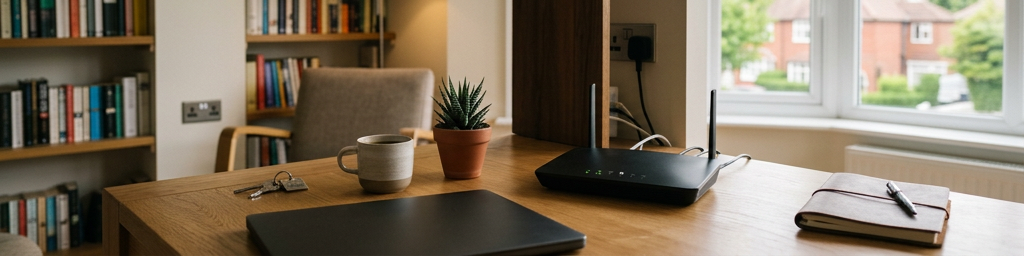
Lock Down Your Router
Change Default Credentials and Disable Remote Access
Your router is the gateway for all internet traffic. Leaving the default admin credentials is a major risk. Set a long, unique admin password and turn off remote management and cloud control features. This prevents outsiders from altering your network settings from outside your home.
Enable Automatic Firmware Updates
Router software contains bugs that manufacturers patch over time. If auto-update is off, those vulnerabilities stay open. In your router settings, enable automatic firmware updates. If not available, set a monthly reminder to manually check. Apply updates during off-peak hours to avoid disruption.
Use Strong Wireless Encryption
Wi-Fi signals extend beyond your walls. Encryption scrambles data so only authorized devices can read it. Choose WPA3 if supported, otherwise WPA2-AES. Disable older standards like WEP or WPA/TKIP. Pair this with a long, memorable passphrase that is not used elsewhere. A neutral network name (not your name, address, or router model) further reduces risk.
| Router security check | Why it matters |
|---|---|
| Unique admin password | Prevents attackers from taking over your network |
| Automatic firmware updates | Closes security holes without manual effort |
| Remote management disabled | Reduces entry points for internet-based attacks |
| Strong wireless encryption | Stops nearby snoopers from reading your traffic |
Segment Your Network for Safety
Set Up a Guest Network
Sharing Wi-Fi with visitors shouldn't give them access to your personal devices. A guest network creates a separate pathway for friends to go online without reaching your laptops, phones, or storage. This is especially important if a guest's device carries malware. In router settings, enable the guest network with a clear but anonymous name and a simple password. Also block guest devices from communicating with your main local network.
Isolate IoT Devices
Smart plugs, cameras, speakers, and other internet-connected gadgets often have weak security. Place them on a separate network (via another SSID or VLAN) away from your computers and phones. Your phone can still control them through apps, but they cannot freely scan your personal data. If your router only supports two networks, reserve one for personal devices and the other for gadgets.
Build Daily Privacy Habits
Automate Updates and Use a Password Manager
Enable automatic updates on all devices where possible (phones, laptops, TVs). For devices lacking auto-update, create a checklist and review it occasionally. Use a password manager or a locked notebook to store unique, strong passwords for router admin, Wi-Fi access, and online accounts.
Watch for Security Cues
Even on a secure network, how apps handle data matters. Look for the padlock icon in your browser—it means encryption is active. Avoid entering sensitive info on sites without it. Prefer messaging and banking apps that support multi-factor authentication. Over time, choosing privacy-friendly tools reduces the amount of data sent in the clear.
Review Connected Devices Regularly
Check your router's device list every few weeks. Familiarize yourself with the devices that should be connected. If you see something unfamiliar, disconnect it, change your Wi-Fi password, and reconnect only trusted devices. Remove old gadgets you no longer use to reduce weak points.
| Quick home check-ups | What to look for |
|---|---|
| Router device list | Unknown devices, old gadgets still connected |
| Smart gadget app dashboards | Pending updates, default passwords, extra permissions |
| Browser address bar | Missing lock icons on login pages |
| Family routines | Who shares passwords, how guests connect |
Make Security Work for Everyone
Use Analogies, Not Jargon
If you are the family network fixer, avoid tech terms. Use simple comparisons: the guest network is like a guest room, the main network is the bedroom, the IoT network is the storage room. When family members understand each space's purpose, they are more likely to follow the rules without feeling lectured.
Divide Responsibilities
Not everyone needs to know how to update the router. Let one person handle complex setup while others follow simple rules: which Wi-Fi name to use, where to find the visitor password, when to ask for help. Give networks clear names like 'Home Main' and 'Guest' instead of random codes. The goal is safer behavior by default.
Aim for Safe and Easy
Turning your home into a bunker rarely works—people bypass painful rules. Focus on one-time tweaks with long-lasting protection: separating visitors and gadgets, tightening router access, using strong encryption. These are set-and-forget steps. Occasional quick check-ups and gentle conversations keep things on track. Your network becomes just another part of the house you quietly manage.
Frequently Asked Questions
How often should I update my router password? Every 3–6 months, and immediately after sharing it widely, a breakup, flatmate change, or suspected security incident.
What are the most important router settings? Enable WPA3 or WPA2-AES, disable WPS, change default admin credentials, rename the SSID, and turn on automatic firmware updates.
How do I set up a guest network properly? Create a separate SSID with a different password, block local network access, limit bandwidth if possible, and disable the guest network when not in use.
How can I protect IoT devices? Place them on a separate VLAN or guest network, disable unnecessary remote access, keep firmware updated, and use strong unique passwords.
What everyday habits support digital privacy? Use a password manager, enable multi-factor authentication, keep systems updated, avoid unknown links, review app permissions, and teach children basic privacy rules.